Markdown Preview: A Simple Way to Write, Format, and Check Markdown Online
How to write and preview Markdown online: headings, emphasis, lists, and code explained simply, with tips for clean formatting.
Markdown makes it so much easier.
Instead of clicking bold button, heading button in complicated editors, you just type some symbols. Like # for heading, ** for bold. Simple.
But problem is - when you're writing Markdown, you can't really see how it will look finally. You're just seeing symbols.
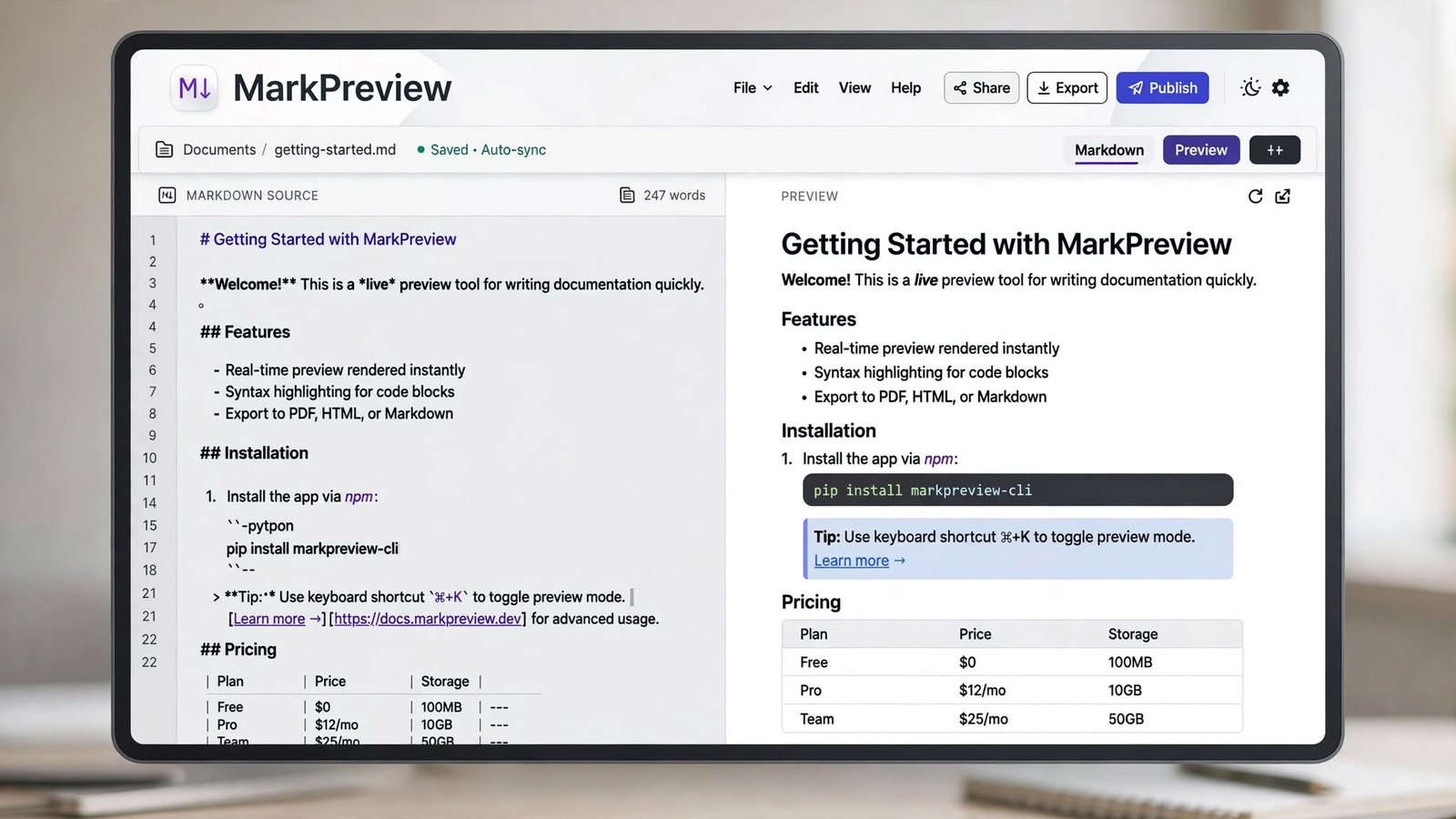
That's where Markdown Preview tool comes. You write Markdown on one side, and on other side you see final formatted result instantly. As you type, preview updates. So you immediately know if your formatting correct or broken.
Let me explain properly like how I learned.
What is Markdown?
Lightweight way to format plain text.
Instead of using HTML tags like <h1>, <b>, you use simple characters.
Example:
My Heading -> becomes big heading
Bold Text -> becomes bold
First item
Second item -> becomes bullet list
Easy to learn, convenient for many tasks.
What is Markdown Preview tool?
It converts your Markdown source into visual formatted content.
Normally interface has two boxes.
Left side - editor where you type Markdown.
Right side - preview showing rendered result.
Like you type
Welcome
preview shows big Welcome heading.
You write
Important information
preview shows it bold.
Immediate visual feedback, so you know if you typed correctly or messed up syntax.
Why preview useful?
Markdown is readable even without rendering, but preview gives confidence.
When you write long doc with many headings, lists, tables, links, code blocks - hard to imagine final look just from symbols.
Preview removes uncertainty.
Instead of switching apps or saving file again and again, you see formatted result while working. Saves time, editing faster.
How does it work?
Tool takes your Markdown text and parses syntax.
It identifies
Headings
Paragraphs
Bold
Italic
Lists
Links
Images
Code
Blockquotes
Tables
Then renders them visually.
In browser tools, this happens instantly as you type. Most use JavaScript libraries or Markdown parsers to do it.
Basic Markdown syntax - what I use daily
Headings
Use # symbols.
Main Heading
Subheading
Smaller Heading
Number of # = heading level. More # = smaller heading. Helps organize long docs.
Bold
Double asterisks:
This is bold text
Preview shows bold.
Italic
Single asterisk:
This is italic text
Preview shows italic.
Lists
Unordered with hyphen:
Apple
Orange
Banana
Ordered with numbers:
First
Second
Third
Preview lets you confirm list rendering correctly.
Links
Looks like:
Visit Website
First part visible text, second part URL. Preview shows clickable link (depending on tool).
Images
Similar to link but with !:
Image unavailable. Please retry the request.
Preview shows image if resource accessible. Useful for docs, tutorials with visuals.
Code Blocks
Popular among devs.
Inline code with backticks: console.log("Hello");
Longer code inside triple backticks fenced block.
Preview makes it easier to inspect and sometimes adds syntax highlighting.
Blockquotes
Greater-than symbol:
This is a quoted sentence.
Rendered as blockquote. Useful in docs, articles, notes.
Tables
Many Markdown versions support tables.
Product
Price
Laptop
$800
Phone
$500
Raw Markdown table hard to read, but preview shows proper table, so visual preview especially helpful here.
For developers - main users
Developers are biggest users of Markdown.
Used for docs, README files, project notes, issue descriptions, technical guides.
Preview helps check if docs properly formatted before publishing.
Example README contains:
Installation instructions
Commands
Code examples
Feature lists
Screenshots
Links
Config details
Seeing rendered version makes it easy to spot formatting problems.
For GitHub projects
Markdown heavily used on GitHub.
README and docs written in Markdown.
Preview helps understand how file will look after rendering on GitHub.
Useful for checking heading hierarchy, code blocks, lists, tables, links, images, quotes.
But note - Markdown features supported vary between platforms, so always consider target platform rules.
For writers
Not only programmers.
Writers can use for articles, notes, drafts.
Advantage - keeps formatting lightweight. Instead of formatting menus, use simple syntax and focus on content. Preview gives familiar visual.
For bloggers
Bloggers may use Markdown when preparing articles for CMS that supports it.
Preview allows checking headings, lists, links, quotes before publishing. Reduces formatting mistakes.
Example, accidentally used wrong number of # for heading or broke link syntax - preview makes it obvious.
For documentation
Technical docs often mix normal writing and structured info.
Markdown works well because supports both readable plain text and useful formatting.
Doc might contain title, intro, installation, commands, examples, notes, tables, links.
Preview helps verify overall structure before publishing.
Live vs Manual preview
Two approaches.
Live preview updates as you type. Convenient, see changes immediately.
Manual preview requires clicking button to see result. Sometimes better for large docs or where constant rendering uses resources.
Both useful.
Advantages of browser-based preview
No Installation - use via browser, no need to install software.
Fast Feedback - live preview shows changes almost immediately.
Simple Interface - just editor and preview.
Useful for Beginners - learn Markdown by seeing how symbols affect result.
On mobile
Markdown usually associated with desktop dev, but mobile users also benefit.
Responsive editor allows writing notes or docs from phone or tablet.
But editing large docs on small screen less comfortable than desktop keyboard. For short notes and quick changes, mobile still useful.
For learning
Preview tool is great learning environment.
Beginners can experiment with different symbols and immediately see result.
Type heading and see visual change. Then try lists, bold, links, quotes, code blocks.
This feedback loop makes it easier to understand syntax. Instead of memorizing every rule before starting, you learn by doing.
Common mistakes I made
Incorrect heading syntax - missing or wrong placed # so heading not render.
Broken links - URL wrong or brackets parentheses not properly arranged. Like text [blocked] - if you miss bracket, breaks.
List formatting problems - inconsistent indentation affects nested lists.
Incorrect code fences - code blocks need matching opening and closing ``` fences.
Unsupported features - not every renderer supports every Markdown extension. So doc that looks perfect in one preview may need minor changes elsewhere.
Markdown flavors - important
Not single universal standard.
Different platforms support different features.
One environment supports tables, another handles differently. Some support extra extensions beyond basic.
So document that looks perfect in one preview tool may need changes before publishing elsewhere.
Good workflow - preview using syntax rules as close as possible to final publishing platform.
Security
Markdown rendering can have security considerations, especially when HTML or external resources allowed.
Trustworthy preview tool should handle unsafe content carefully.
Also avoid pasting sensitive info into unfamiliar online services.
For normal docs and public content, generally straightforward, but privacy still consider when choosing online tools.
What makes good preview tool? For me
Clean responsive interface.
Important features:
Live preview
Large editing area
Clear rendered output
Markdown syntax support
Code block support
Table support
Link rendering
Image rendering
Copy functionality
Clear/reset option
Mobile friendly layout
Extra like downloadable Markdown files or HTML export makes even more useful.
For content creation
Content creators work across platforms. Draft in one app, publish elsewhere.
Markdown provides convenient middle ground between plain text and heavily formatted docs.
Preview helps confirm structure before transferring content. Especially helpful for long docs with multiple headings and lists.
Quick FAQ
What is Markdown Preview? Tool that displays Markdown source as formatted content so you see final look.
Need coding to use Markdown? No, relatively simple, basic formatting can be learned without advanced programming.
Can Markdown create headings? Yes, # symbols for different heading levels.
Can create tables? Many implementations support tables, though syntax varies.
Can display images? Yes, using image syntax if renderer supports referenced resource.
Is Markdown same as HTML? No, different systems. Markdown more lightweight and easier to write, HTML more detailed control over webpage structure.
Why use Markdown Preview? Lets you see formatted result while writing, easier to catch syntax and layout problems.
Can use on mobile? Yes if tool responsive and works on phones tablets.
Final thoughts
Markdown became popular because it combines simple syntax with useful formatting.
But reading raw Markdown and imagining final appearance not always easy, especially when doc has tables, links, code blocks, multiple heading levels, complex lists.
Markdown Preview tool solves this by giving immediate visual feedback.
Writers use it to organize articles and notes. Developers use for docs and README. Bloggers check formatting before publishing. Beginners use as practical way to learn Markdown syntax.
Most useful tools keep experience simple: write Markdown in one area and see rendered result in another.
For anyone who regularly works with Markdown, having reliable preview tool makes writing, editing, formatting much faster and more convenient.
Jobnix Editorial Team — part of Jobnix Tools, we write and review practical guides for the free tools on this website, so you can use them with confidence.